Using Ombro with Obsidian
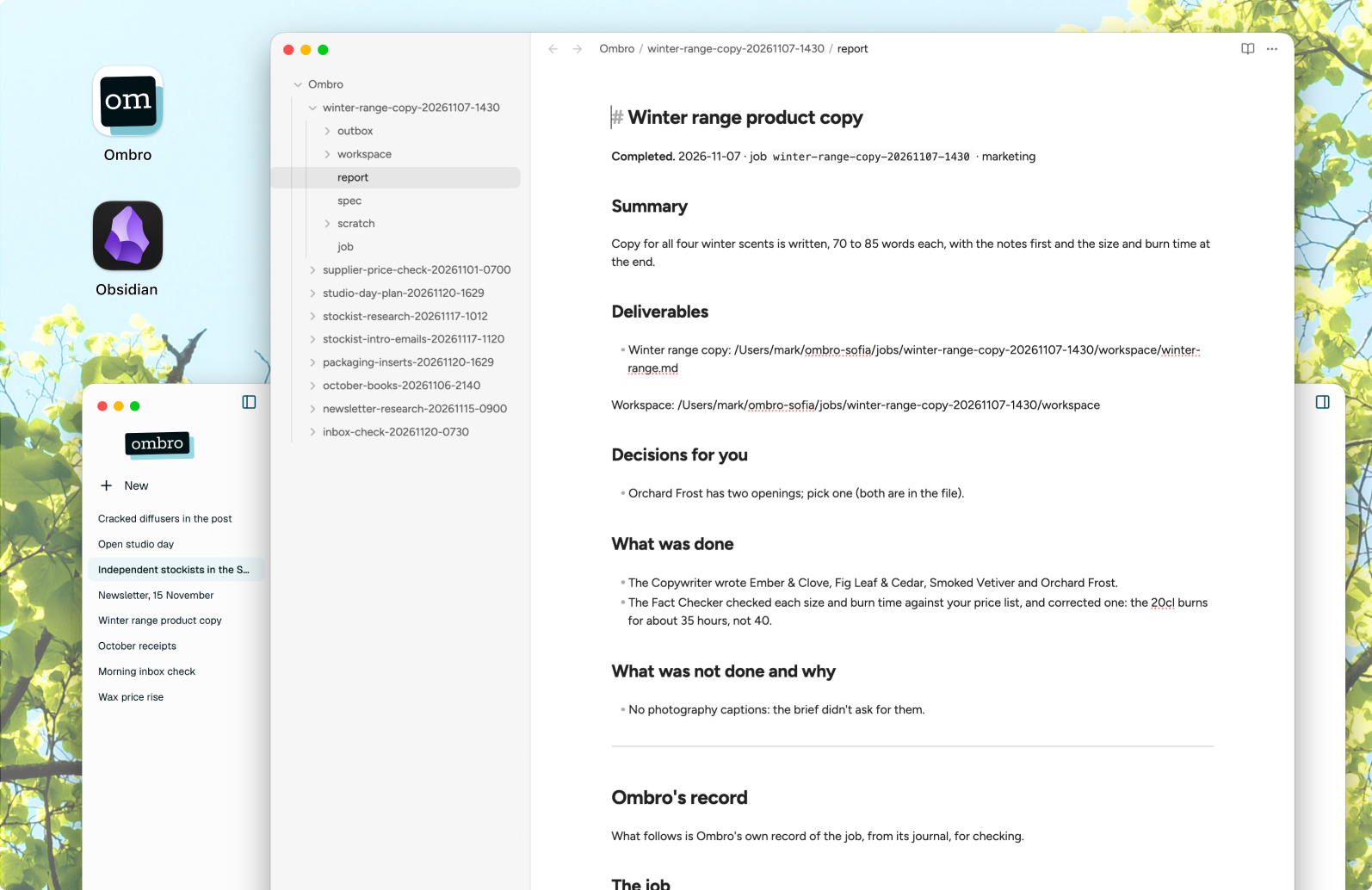
Obsidian is a popular notes app that keeps everything as plain Markdown files in a folder on your computer, called a vault. Ombro writes Markdown too, so the two fit together neatly: share a vault with Ombro, and what your crews write lands straight in your notes.
Why it works well
Section titled “Why it works well”- No hunting for files. Reports and deliverables appear in Obsidian, organised and readable, instead of in a job folder you have to find.
- Ombro can build on your notes. Crews can read earlier notes in the vault, then write new versions or updates alongside them: last month’s competitor review becomes this month’s, with the changes.
- Links and search come free. Obsidian indexes whatever Ombro writes, so it shows up in search, backlinks and the graph.
Choose how much to share
Section titled “Choose how much to share”There are three sensible set-ups. Whichever you choose, Ombro never deletes a note: files it replaces are kept in an Archive/ folder, and jobs that can write get a backup first. See Outputs and shared folders.
| Set-up | Ombro can see | Good for |
|---|---|---|
| A folder in your vault (recommended) | Just that folder | Most people: Ombro’s work sits in your vault, ring-fenced from your other notes. |
| A fresh vault, just for Ombro | Only what Ombro writes | The safest start, or if you don’t use Obsidian yet. |
| Your whole vault | Every note you’ve ever written | Making the most of your notes history, if you’re comfortable giving Ombro all of it. |
Set it up
Section titled “Set it up”- Make the folder. In Obsidian, create a folder for Ombro in your vault, such as
Ombro. (For a fresh vault, choose Create new vault in Obsidian instead.) - Share it with Ombro, with write access:
Open Settings › Folders, choose Share a folder with Ombro, pick the folder and choose Can read and write.
Terminal window ombro folder add ~/Documents/Notes/Ombro # choose write when asked - Ask for it in your briefs. Say where the result should go, for example: “Save the report as a note in the Ombro folder, in Markdown, with today’s date in the title.” The brief interview also asks which folders a task needs.
- Make it a habit, if you like. Add a line to your profile (Settings › General › Your profile) such as “Save written results as Markdown notes in the shared Ombro folder”, and the Lead will follow it for every task.
- Ask for Obsidian’s features by name. “Link to related notes with
[[wikilinks]]” or “add tags in the front matter” works, as Ombro’s crews write plain Markdown. - Keep a running note. For a scheduled job, ask it to update one note each time (“add this week’s prices to the top of Supplier prices”) rather than making a new one.
- Ombro’s own housekeeping shows up too. Set-aside files appear in
For deletion/and old versions inArchive/, inside the shared folder. You can empty them whenever you like. - On a server, Ombro can only share folders on the server. Sync the vault there with Obsidian Sync, Syncthing or similar, or keep a separate vault on the server.
© 2026 Ombro, from Heliotrope Atelier Ltd