The desktop app
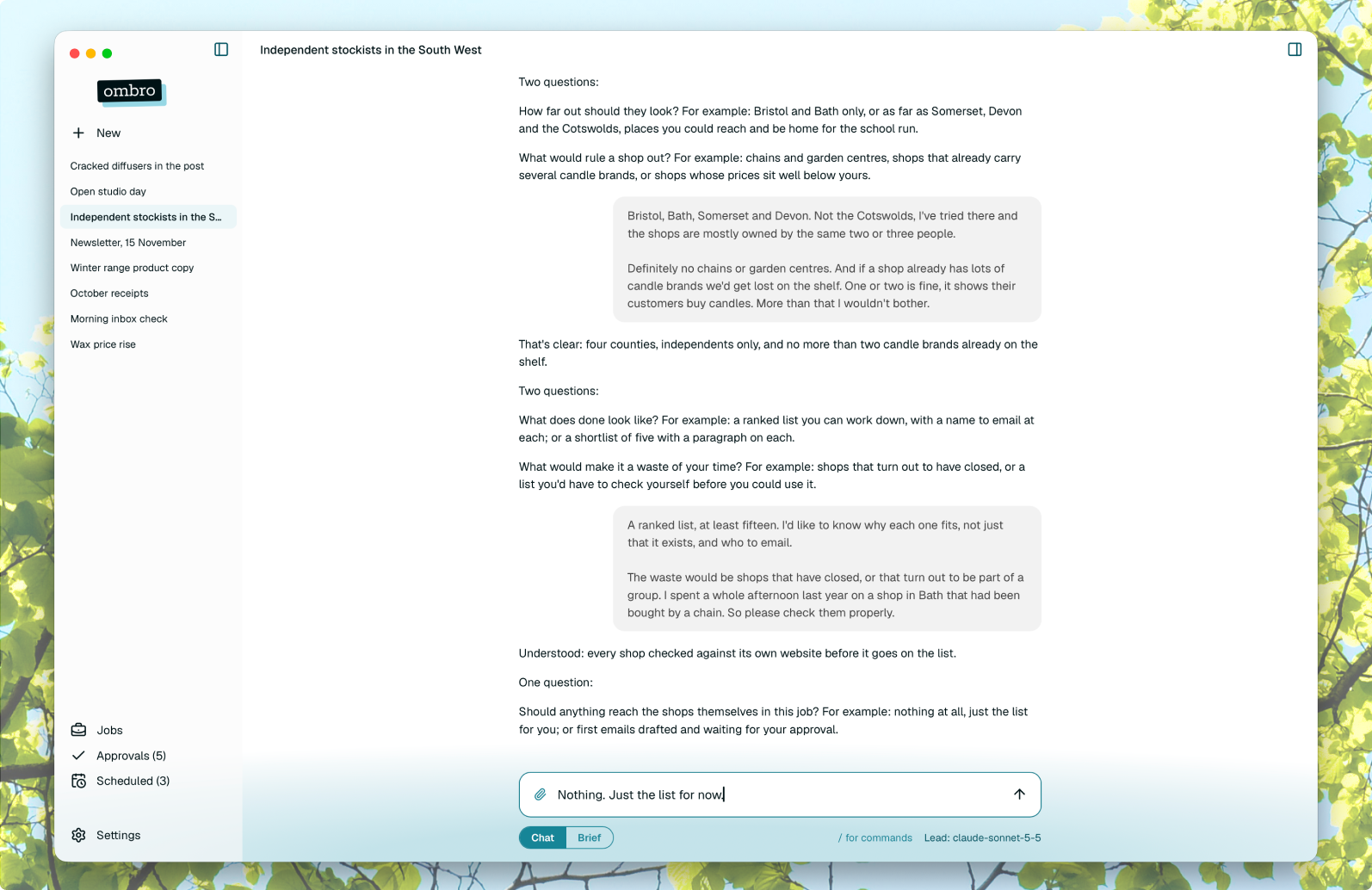
The desktop app is the easiest way to use Ombro. It does everything the terminal does: chats and briefs, jobs and reports, approvals, schedules and every setting. A menu bar item shows what’s waiting for you.
It runs on macOS (Apple silicon) and Linux. To install it, see Download and install.
How it’s laid out
Section titled “How it’s laid out”The sidebar holds everything:
| In the sidebar | What it’s for |
|---|---|
| New | Start a fresh chat with the Lead. The home screen shows your crews, what’s running and what’s waiting. |
| Your chats | Past chats by title. Open one to carry on where you left off. |
| Jobs | Every job, running or finished. Open one for its brief, its progress and its report. |
| Approvals | Actions waiting for your yes or no. See Approvals. |
| Scheduled | Saved briefs that run on a schedule. See Schedules. |
| Settings | General, Crews, Folders, Tools and Skills. |
Working with the Lead
Section titled “Working with the Lead”Type in the box at the bottom to chat. Ask a question and you get an answer. Ask for work and the Lead asks whether to report back (a brief, then a job in the background) or do it live (a job you watch in the chat). See Chat.
Attach files by dropping them on the window or clicking the paperclip. They go with your next message, and any job made from that chat gets them too.
Discuss this brief, on a job’s brief page, opens a chat where the Lead has that brief to hand and asks whether to change it, start it again or schedule it.
While jobs run
Section titled “While jobs run”- A job’s page shows its progress, then its report.
- When a job ends, or something needs your approval, Ombro sends a system notification.
- Closing the window keeps Ombro in the menu bar. Scheduled jobs run whether the app is open or not.
Settings
Section titled “Settings”| Section | What’s there |
|---|---|
| General | Your name and profile, where Ombro runs, model providers and the default model, the token usage limit, the approval mode, thinking, the browser, appearance (light, dark or same as the system) and updates. |
| Crews | Each crew and its roles: rename them, change a role’s model, edit its instructions, add or remove. See Crews. |
| Folders | The folders jobs may use. See Outputs and shared folders. |
| Tools | Web search and reading, MCP servers, web APIs and Composio. See Tools. |
| Skills | The skills library, and who uses each skill. See Skills. |
Using a server
Section titled “Using a server”The app can run Ombro on your own computer or connect to Ombro on a server. Choose on first run, or later in Settings › General › Where Ombro runs. See Ombro on a server.
Updates
Section titled “Updates”The app checks for a new version shortly after it starts and once a day. When there is one, click Install and restart. See Download and install.
Where to look
Section titled “Where to look”The app uses the same files as the terminal, so the two work side by side:
- Settings, keys, crews and saved briefs:
~/.config/ombro - Jobs, chats and attached files:
~/Ombro
See Ombro’s files.