The terminal interface
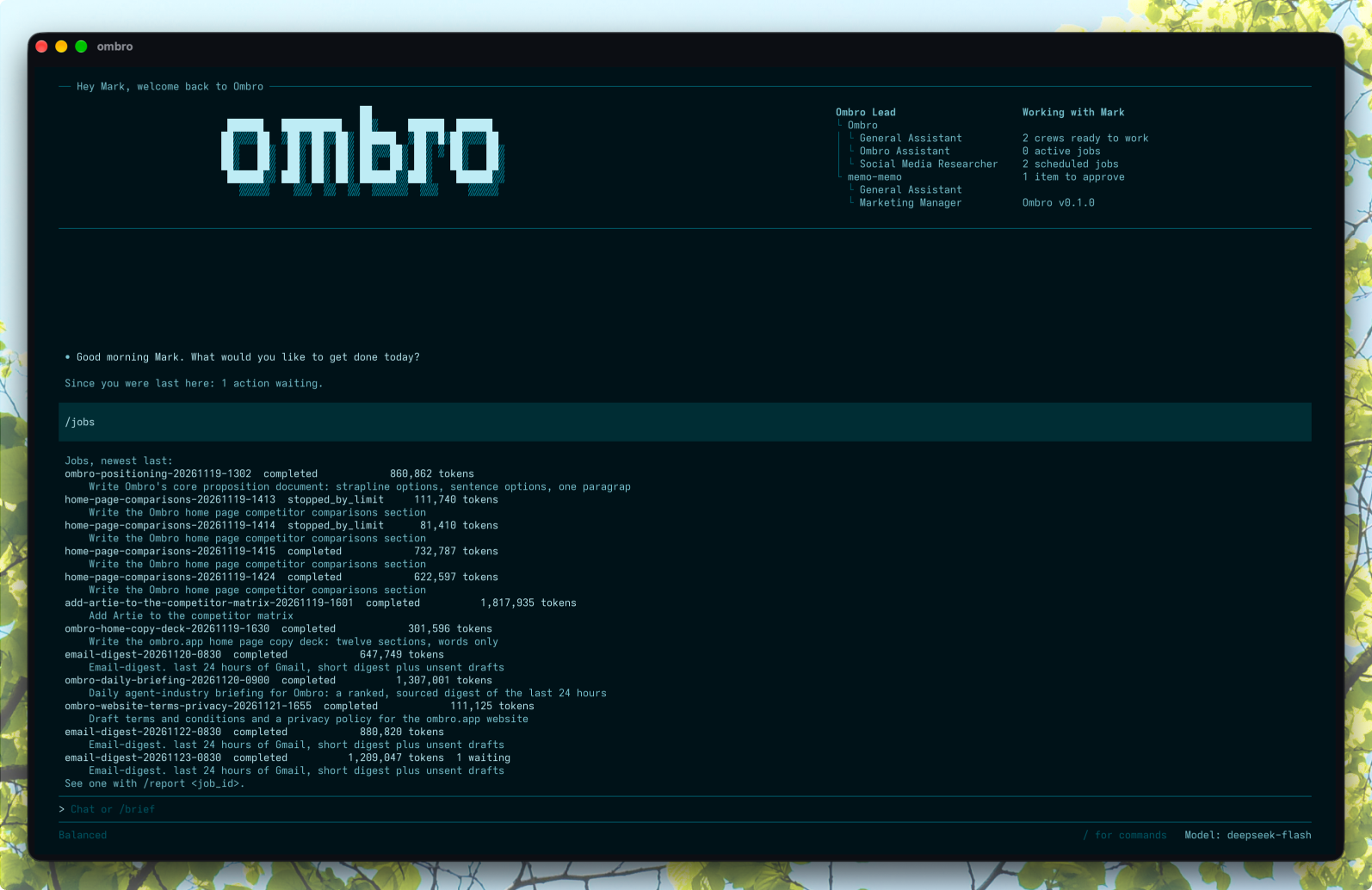
Type ombro on its own to open the terminal interface (often called the TUI): a full-screen chat with the Lead. It does what the desktop app does, for people who’d rather work in a terminal. It’s also how to use Ombro on a server from an SSH session, with no desktop app at all.
ombroOn a fresh install it opens straight into set-up: your name, a model and its key, then the set-up interview. /setup runs it again.
Finding your way around
Section titled “Finding your way around”A header shows your crew as a tree, with what’s running, scheduled and waiting. It scrolls away as the conversation grows.
- Chat by typing. Enter sends; Shift+Return (or Option+Return, Ctrl+J, or
\then Return) starts a new line. - Type
/to list the commands. - Ctrl+C stops whatever is in progress. With nothing in progress and nothing typed, press it twice to leave, or type
/quit. - A small turning glyph under the conversation means the Lead is working.
When a job ends while the interface is open, scheduled jobs included, a notification says how it ended, links its files and says how to open the report. When you open it again, it tells you what finished while you were away.
Commands
Section titled “Commands”The slash commands do what the matching ombro commands do.
| Command | Does |
|---|---|
/brief [@crew] [text] |
Start a brief: an interview that ends in a saved spec. It offers to start the job straight away. |
/chat |
Leave the brief and go back to chat, with nothing written. |
/live [@crew] <text> |
Start a live job in this chat. |
/new |
Save this chat and start a fresh one. |
/chats |
Reopen a past chat. |
/remember [@crew] <text> |
Add a dated note to a crew’s memory. |
/start [spec] |
Start a saved spec again, with no interview. |
/jobs, /report [job], /stop <job>, /open [job] |
List jobs, read a report (/report <job> full adds Ombro’s record), stop a job, open its folder. |
/approvals, /approvals show | approve | decline <ref> |
See and decide what’s waiting. |
/role, /role add, /role edit <name> |
Roles. |
/crew, /crew add <name>, /crew use <name> |
Crews. |
/model, /models |
Who uses which model; model connections. |
/limits, /limits set [level] |
The allowance for all of Ombro. |
/tools, /tools add, /tools remove <name> |
Tools, MCP servers and web APIs. |
/folder, /folder add <path>, /folder remove <name> |
Shared folders. |
/schedule, /schedule enable | disable <name> |
Schedules. |
/skills, /skills give, /skills add <folder> |
Skills. |
/keys, /keys set <NAME> |
API keys (typed into a hidden field). |
/preferences, /theme, /help, /quit |
Preferences, light or dark, help, leave. |
A few things are command-line only: ombro approvals edit, ombro schedule add and ombro keys remove.
Colours
Section titled “Colours”/theme switches between light and dark. To fix it, set theme: in ~/.config/ombro/preferences/config.md to auto, light or dark. auto asks the terminal for its background colour, then the system.